
A touchscreen that doesn’t respond properly can make even simple tasks frustrating and time-consuming. From typing messages to scrolling through social media, an erratic screen interrupts daily routines and can lead to repeated mistakes or accidental actions. Many users try quick fixes without realizing that both simple and complex factors may contribute to the problem. While some touchscreen issues can be resolved at home, others indicate deeper hardware or software problems. In this article, we explore practical ways to troubleshoot your touchscreen and guide you on when repair or replacement is the best solution.
First, Rule Out Simple External Issues
Clean the Screen and Remove the Screen Protector
Dirt, oil, and fingerprints can significantly affect touchscreen responsiveness. Even a thin layer of residue or dust can cause taps to be missed or registered incorrectly. Removing a screen protector can also help determine whether the accessory itself is interfering with touch accuracy. Wiping the screen with a soft, lint-free cloth ensures that external factors aren’t mistaken for a deeper issue. Performing this simple step often solves the problem immediately and is a good first action before attempting more technical troubleshooting.
Check for Moisture and Remove the Phone Case
Moisture from sweat, humidity, or accidental splashes can make a touchscreen behave unpredictably. Using the phone with wet hands or placing it on damp surfaces often leads to ghost touches or unresponsiveness. Removing a bulky or ill-fitting phone case can help if pressure points are affecting the screen. Ensuring the device is dry and free from external interference is essential before considering software or hardware fixes. These small adjustments frequently resolve touch inaccuracies without any repair costs.
Then, Troubleshoot Software and Settings
Restart Your Phone and Check for Updates
Sometimes, a touchscreen glitch is caused by temporary software conflicts rather than hardware issues. Restarting the phone clears background processes and can restore normal touchscreen functionality. Checking for operating system or app updates ensures that known bugs are patched. Even minor updates can fix unresponsiveness caused by compatibility issues. Keeping software current is a preventive step that avoids more serious touchscreen problems later.
Test in Safe Mode for App Conflicts
If restarting doesn’t help, testing the device in safe mode can reveal whether third-party apps are interfering with touch input. Safe mode disables all non-essential apps, allowing you to isolate the cause. If the touchscreen works properly in this mode, it indicates a conflicting app needs to be removed or updated. This method prevents unnecessary hardware repairs by identifying a software source. Understanding this distinction can save time, money, and frustration in everyday use.
When It’s Likely a Hardware or Screen Damage Problem
Signs Like Unresponsive Areas or “Ghost Touches”
Persistent issues such as dead zones, unresponsive areas, or random screen taps usually point to hardware problems. These glitches often worsen over time and are not fixed by cleaning or software updates. Using a stylus or finger may trigger unexpected behavior in certain regions, signaling that the digitizer or touch layers are compromised. Ignoring these symptoms can lead to further damage and more costly repairs. Recognizing these signs early helps determine whether a repair or replacement is necessary.
How Past Drops or Liquid Damage Cause This
Physical impacts from drops or exposure to liquids can disrupt the internal touchscreen layers. Even minor drops may misalign components, while liquid exposure can corrode circuits and create inconsistent touch behavior. Evidence of such damage often appears gradually but can become noticeable during everyday use. Understanding the cause helps set realistic expectations for repair or replacement costs. Evaluating the history of the phone can prevent wasting money on temporary fixes that won’t address the root issue.
How to Decide: Repair, Replace, or Upgrade Your Phone
When Screen Repair is Economical vs. Too Expensive
Screen repair is a viable option if the cost is significantly lower than the price of a new phone and the device is otherwise in good condition. Replacement parts and professional services vary in price depending on model and complexity. If the touchscreen issue is isolated and the phone functions well in other areas, repair may restore usability efficiently. Comparing repair costs to the phone’s market value helps determine financial sense. This step ensures you make an informed choice without overspending unnecessarily.
Clear Signs It’s More Cost-Effective to Buy a New Phone
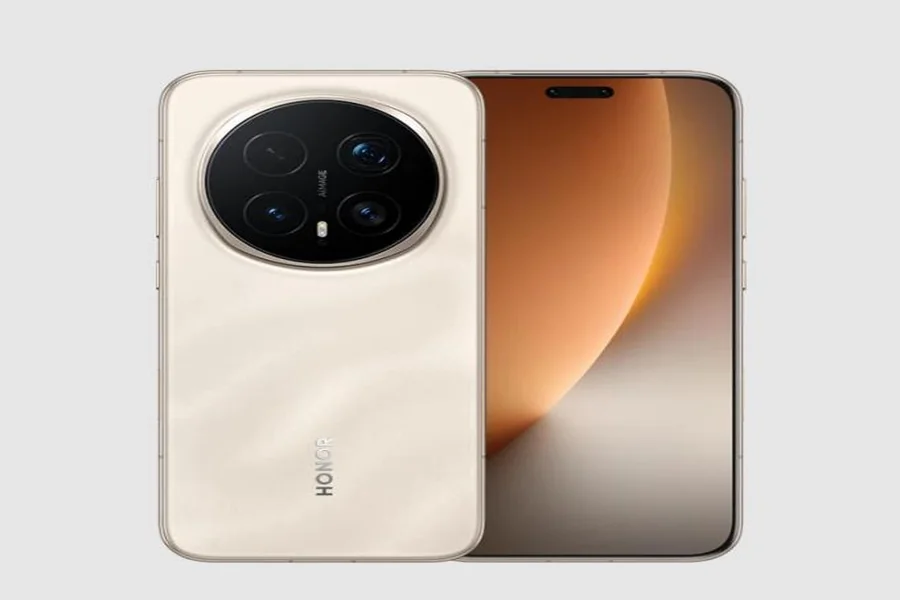
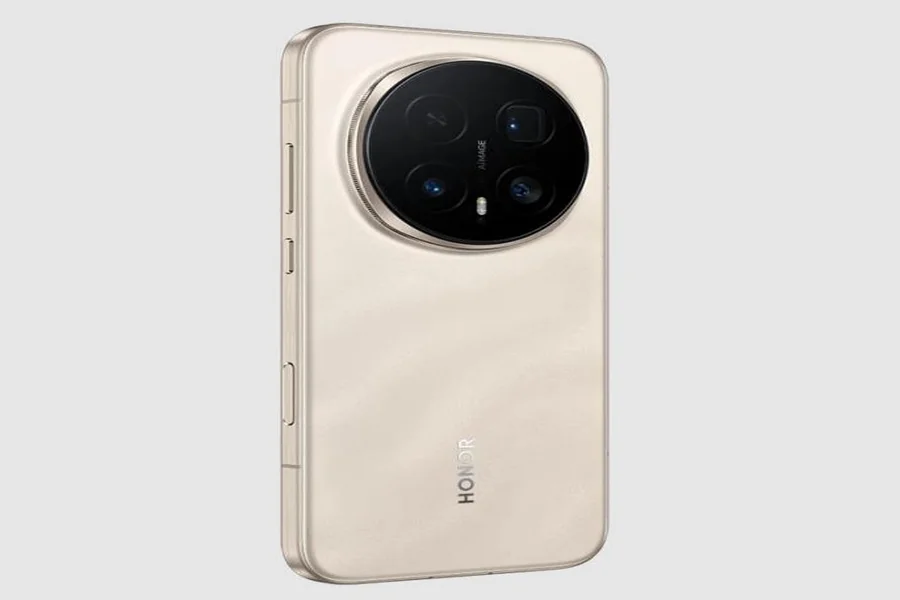
Sometimes repeated repairs, battery issues, or other performance declines make replacing the phone the better long-term investment. If the device has multiple failing components, frequent crashes, or slow response despite repairs, a new phone can save time and stress. For example, considering a device like the HONOR Magic 8 pro price uk offers strong battery life and reasonable cost, making it a practical choice for users needing reliability and longevity. Opting for a new phone ensures smoother performance, reduces the likelihood of future repair costs, and improves the overall user experience. Recognizing when continued repair becomes less economical helps prioritize convenience and efficiency.
Conclusion
Dealing with a touchscreen that is inaccurate or jumpy requires a balance of practical troubleshooting and informed decision-making. Start with cleaning, software checks, and simple fixes before assuming hardware failure. If persistent issues remain, evaluating repair costs versus replacement is crucial. Devices like the HONOR Magic 8 pro price uk demonstrate that upgrading can provide long-lasting battery performance at a fair price while avoiding ongoing frustration. By following these steps, you can restore a fully functional touchscreen, ensuring your daily tasks remain smooth and reliable.